How Will Google Ads Change in 2027?
November 10, 2026
Just Got a Letter Saying Your Website Isn’t ADA Compliant? Here’s What to Do Next
November 19, 2026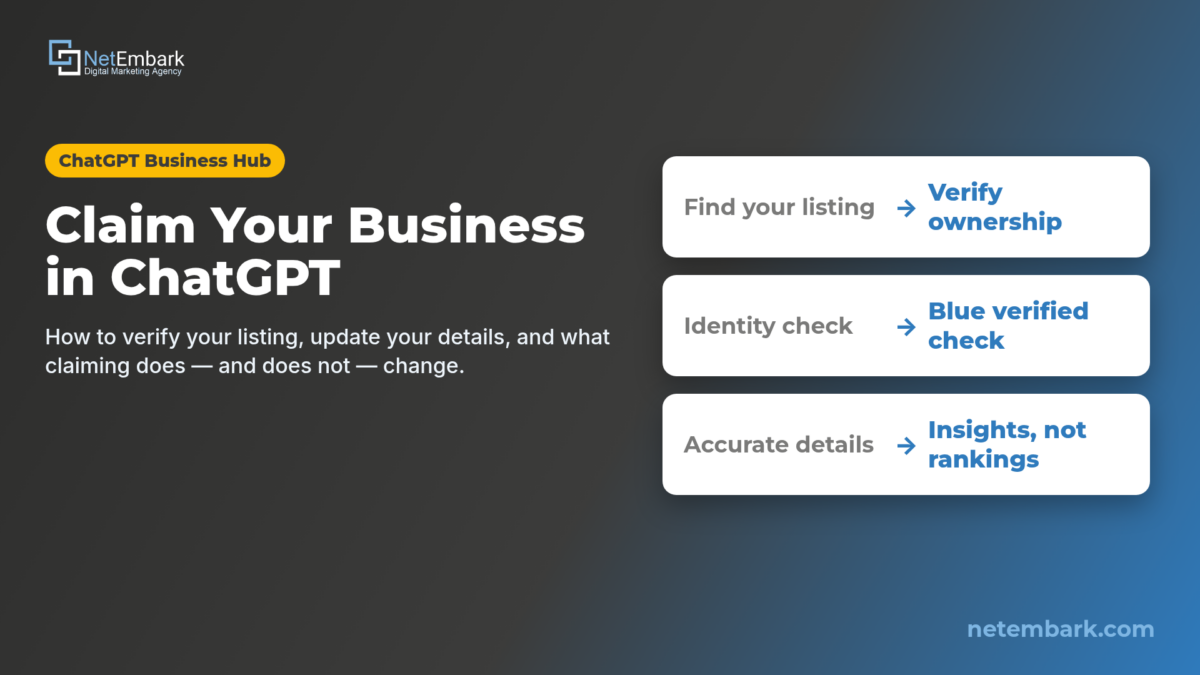
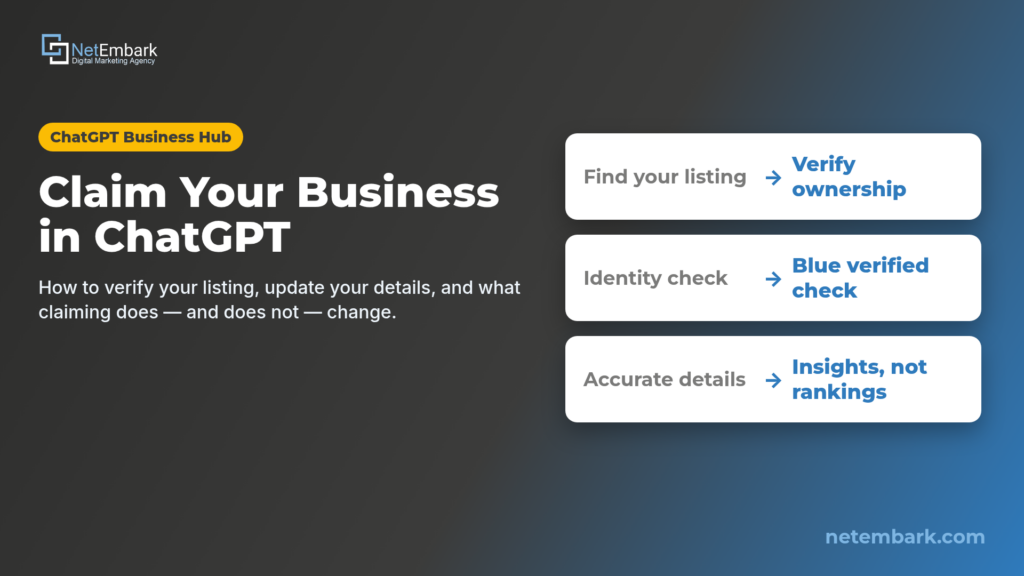
Short answer: Sign in to ChatGPT, open Business Hub from the sidebar — or go to chatgpt.com/business-hub, which currently sends unsigned-in visitors to the ChatGPT login page — then search for your business, select the matching listing, and verify with one of the methods shown, such as a business phone, business email, website domain, or Shopify store. OpenAI reviews the claim. After approval, complete identity verification with Persona before you can publish profile changes, view insights, or create an eligible Business Agent. A blue check appears after Persona verification is approved, not after the claim alone. Claiming does not guarantee higher placement or more sales. This guide follows official OpenAI documentation read on November 11, 2026 (America/New_York). Business Hub is in beta. We also reviewed a signed-in create-flow screen recording; where that recording shows extra in-product labels, we say so. The official Help Center remains the baseline.
How do you claim your business in ChatGPT Business Hub?
Sign in to ChatGPT, open Business Hub, find your listing, verify ownership, wait for OpenAI’s review, then complete identity verification with Persona. That is the path OpenAI documents in its Help Center article Setting up your business on ChatGPT. On November 10, 2026, OpenAI introduced Businesses in ChatGPT in beta. Through Business Hub, eligible businesses can claim a listing, manage information, and see aggregated insights. Eligible U.S. ecommerce and online service businesses can also create a Business Agent.
This is a how-to based on official documentation, not a promise of rankings, mentions, or leads. Steps, labels, and eligibility can change while the product is in beta. We did not submit a claim from this workspace. In addition to the official pages, we reviewed a signed-in Business Hub screen recording of the add-a-business flow (saved as research only in this kit). Labels from that recording are called out separately and can change.
Business Hub is not the same thing as a ChatGPT Business workspace plan. The Business plan is a paid team product. Business Hub is the place to claim and manage a business profile inside ChatGPT.
What is ChatGPT Business Hub?
Business Hub is OpenAI’s tool for claiming a business in ChatGPT, adding business and product details, and seeing how people engage with that business in ChatGPT — for example mentions and website clicks. OpenAI’s announcement points to Business Hub as the starting point. An unauthenticated visit to chatgpt.com/business-hub on November 11, 2026 (America/New_York) returned a redirect to the ChatGPT sign-in page, with the next destination set to /business-hub. So the URL is real, and you should expect to sign in before you see the hub itself.
After a business appears in a ChatGPT answer, people can click through to that business’s ChatGPT profile. If a Business Agent has been published, customers can choose to start a clearly labeled conversation with the business. That chat is separate from ChatGPT’s own independent answers.
Who can claim a business?
OpenAI says you can claim a business if you own it or are authorized to represent it. You have to verify that connection and be approved. You do not need an Ads account or a ChatGPT Enterprise agreement to claim an eligible business.
Eligibility is not automatic. Official pages say it depends on factors including industry, location, and verification and integrity checks. Eligible businesses can claim an existing listing, or add one, where ChatGPT is available and the required verification is supported. Availability depends on the business’s location and type. OpenAI’s marketing page also says claiming is initially available to eligible businesses with a website. The Businesses in ChatGPT policy is explicit that not every business can create or claim a profile, and that eligibility can change.
A few published limits matter for local businesses:
- If you run an eligible online business and cannot find your listing, you may see an option to add it.
- Local stores and restaurants can currently claim only an existing U.S. listing.
- Each distinct brand is managed separately. Claiming a main brand does not claim its locations. Central management across a parent company’s brands and locations is not currently available.
Business Agents have a narrower gate. They are available to eligible ecommerce and online service businesses in the United States that have a website, and the business must also meet the industry requirements in the Business Agents Policy. OpenAI says verification alone does not guarantee agent eligibility. Existing Enterprise customers and advertisers can work with their OpenAI representative to claim a business. We did not find a public, enumerated list of every eligible agent category.
How to claim your business, step by step
These steps follow OpenAI’s Help Center. Use only the verification methods ChatGPT actually shows you for your business. We have not invented extra buttons or screens.
1. Sign in and open Business Hub
Sign in to ChatGPT, and open Business Hub from the sidebar. You can also go to chatgpt.com/business-hub after you are signed in. Search for your business by name.
If you received a claim invitation by email, open the personal link in that email and sign in with the email address that received it. Do not forward a personal claim invitation to give someone else access.
2. Select your listing and confirm the account
Select the listing that matches your business, and confirm the ChatGPT account you will use to manage it.
If you see Contact support, OpenAI says the listing is locked. Select Contact support to request help with access.
If you cannot find your business and you run an eligible online business, you may see an option to add it. In the signed-in walkthrough we reviewed, search offered a Create row for the typed name, then an Add your business to ChatGPT screen. Local stores and restaurants can currently claim only an existing U.S. listing.
3. Verify the claim with one of the methods shown
Choose one of the verification methods shown and follow the prompts. OpenAI lists these methods:
- Business phone. Select Business phone, then choose a text message (SMS) or an automated call. Select Get code and enter the code sent to the number shown.
- Business email. Select Business email, then Get code. Enter the code sent to the email address associated with your business.
- Website domain. Select Website domain, then add the TXT record shown in ChatGPT to your domain’s DNS settings. Copy the type, name or host, and value exactly. If someone else manages your domain, ask them to add the record. DNS changes may take time to appear. Return to ChatGPT and select Verify domain, then follow any remaining prompts. We have not published a sample TXT value here because OpenAI generates that record in the product.
- Shopify store. Select Shopify store, then Connect Shopify. Review the permissions and select Log in to Shopify. Sign in to the Shopify store for the business you are claiming, then follow the prompts. OpenAI also says Shopify merchants can connect from the Shopify admin. We did not independently walk that admin path for this draft.
4. Wait for OpenAI to review the claim
OpenAI reviews your claim and emails you its decision or a request for more information. Review time varies. While the claim is under review, you can select Cancel claim. Wait for the review to finish before trying again.
5. Complete identity verification with Persona
After the claim is approved, you can access the business in Business Hub. You still need to complete identity verification with Persona before you can publish changes to your business information, connect a product feed, view insights, or create an eligible Business Agent.
This is also when the verified badge can appear. OpenAI’s Help Center is specific: claiming your business alone does not give the profile a verified badge. The badge, shown as a blue check, appears after Persona verification is approved.
OpenAI says you may need a government-issued ID, business registration information, and proof that you are authorized to represent the business. The exact documents can vary. Select Verify with Persona, then Continue to Persona, and follow the instructions. OpenAI reviews the submission and emails a decision or a request for more information.
If you first verified with another method, you can complete Persona later: open the Business tab, select your profile, find Complete verification with Persona, and select Verify.
If you use Persona to create a new profile, OpenAI says approval automatically publishes that profile. There is no separate publishing step, so continue only when you are ready.
Submitting information to Persona is not the same as being approved. Features that require Persona verification stay unavailable until approval comes through.
6. If the listing is already claimed, dispute ownership
If someone else has already claimed the business, open its profile, select the more options menu (•••), then select Dispute ownership. Follow the prompts to verify with Persona that you are authorized to represent the business. Claiming a profile or disputing ownership does not, by itself, change the listing’s visibility in ChatGPT.
What the add-a-business flow looks like
OpenAI’s Help Center says that if you run an eligible online business and cannot find your listing, you may see an option to add it. A signed-in Business Hub recording we reviewed showed that create flow. The labels below were read from those screens. They can change, and not every business will see the same steps or offers.
After a Create choice, the walkthrough showed a screen titled Add your business to ChatGPT, with a Get started button, and short copy about seeing how the business shows up, showing customers what you offer, and helping customers make decisions with a business agent.
It then asked, How do customers usually interact with [the business]? Three choices were shown:
- At a physical location — customers visit a store, restaurant, office, or similar.
- Through an online store — customers buy from your website or marketplace.
- Through a service, marked COMING SOON in this recording — you visit customers or provide services remotely.
Next came Add your business website, then Verify that you control [the domain], with a DNS TXT record and a Name or host field. The host in this example began with openai-business. Copy the type, host, and value from your own screen; we are not publishing a sample record.
The flow then showed Business category and an optional More about your business box, then optional Phone number and Email fields — in this create path those looked like contact details, which is different from using a business phone or business email as a verification method.
The success screen said the business had been created and saved as a draft, and directed the user to the business overview to continue verification or check its status. In this recording the overview showed a DRAFT badge and a prompt to verify your identity with a government-issued ID. That matches the Help Center: creating or claiming is not the same as finishing identity verification, and a draft is not a finished, verified profile.
The same success screen also showed optional cards to manage the business, start advertising with ChatGPT Ads, and upgrade to a ChatGPT Business plan. Official documentation treats advertising as separate from claiming.
Inside the business, the left navigation showed Overview, Agent builder, and Products. Insights were split into Brand insights and Agent insights, with Mentions, Website clicks, and Top 5 discovery topics. This new draft showed the empty state “No data is available for this timeframe. Try a different timeframe or check back later.” The Products section was locked pending identity verification, with copy about bringing products into ChatGPT responses and a business side panel.
What can you do after the claim is approved?
Once both the claim and Persona verification are approved, OpenAI says you can open your profile and update your website, business description, product or service category, logo, delivery policy, or return policy. You can also add a cover photo and other optional details. Information has to follow the Businesses in ChatGPT policy. The policy also requires that details such as the business name, category, address or service area, hours, contact details, and products or services stay accurate and current. That accuracy list is not, by itself, a confirmed list of every editable field in the signed-in editor, which we did not see firsthand.
OpenAI reviews and publishes changes. Updates can take time to appear in a listing or in a ChatGPT answer. A saved change does not mean every answer will reflect it immediately, and ChatGPT may also use other sources.
Retailers can connect a product feed, including a Shopify feed, to share prices and availability. Connecting a feed does not publish an agent, and it does not guarantee that ChatGPT will recommend your products.
If you are eligible, you can review, preview, and publish a Business Agent. Publishing the agent is a separate, optional step. Customers can chat only with a published agent. In the current experience, a Business Agent can explain products and policies and link to your website. It cannot complete purchases, make bookings, or check a customer’s order.
You can also open Insights. Official documentation describes aggregated activity over the past 28 days:
- Mentions. For an online business, a mention counts when ChatGPT references the business’s website. The brand name alone does not count. For a local business, a mention counts when ChatGPT shows a result for that location, even if the customer does not open the listing or visit the website.
- Website clicks. How often people click through to your website.
- Discovery topics. Common themes in ChatGPT answers that mentioned or cited the business. These do not reveal individual prompts or directly measure customer intent.
OpenAI does not share users’ conversations or Business Agent chats with businesses. Insights appear only when activity meets certain thresholds. A blank metric can mean the threshold has not been reached, data is still being collected, or reporting is unavailable. It does not necessarily mean zero activity.
The admin who claimed the business can add teammates in Business Hub and grant an agency access, using each person’s own ChatGPT account. If the business was claimed in a ChatGPT workspace, invitees may need to be members of that workspace.
Why this matters for AI search and AEO
More customers already ask ChatGPT, Google’s AI features, and other assistants for recommendations. Answer engine optimization (AEO) is the work of making your business easy for those systems to understand and cite: clear answers on your site, consistent name and contact details, and structured data. Claiming your ChatGPT listing sits next to that work. It is a way to contribute current information from the business itself, and, if you qualify, to see aggregated mentions and website clicks.
It is not a substitute for a useful website, and it is not a paid boost. OpenAI’s Help Center says claiming lets you manage the information you provide. It does not guarantee increased visibility or give you direct control over ChatGPT’s independent recommendations. Advertising does not influence ChatGPT’s independent answers either. That is the same split we describe in what ChatGPT ads are and in how Google, Meta, Microsoft, and ChatGPT ads work as one system: paid placements are separate from the answer itself.
The practical job, then, is accuracy. Keep the details you submit consistent with your website and the rest of your public information. Do not treat a claimed profile as a shortcut around thin, mass-produced AI blog posts. ChatGPT may still draw on other sources, and updates can take time to show up in answers.
If you later become eligible for a Business Agent, treat it as a customer-facing assistant with limits, not as a set-and-forget closer. That fits the same rule we use in AI agents in your marketing: automate the explanations you can stand behind, and keep a person in the loop for anything that needs judgment.
For a parallel on measuring AI visibility in Google, see how to tell if your business shows up in Google’s AI answers. ChatGPT’s Business Hub insights are a different report, with their own definitions and thresholds.
Talk to Netembark about a free consult on your ChatGPT listing and AI-search visibility → · Call (800) 707-2697
What should you do now?
- Confirm that you own the business or are authorized to represent it, and that you can reach the business phone, business email, domain DNS, or Shopify store you will use to verify.
- Sign in to ChatGPT, open Business Hub, and search for the exact listing that matches your business.
- Complete the claim, then finish Persona verification so you can edit details and use insights.
- Update only information you can stand behind, and keep it consistent with your website.
- If you are eligible, preview a Business Agent against real customer questions before you publish it.
- Judge the result by whether customers get accurate information and whether they contact you — not by a promise of higher ChatGPT placement.
How does Netembark help?
Netembark is a digital marketing agency and a verified Google Partner (Google Premier Partner 2016–2023). We help businesses show up clearly in search and in AI answers, and we keep paid media, the website, and tracking pointed at calls, forms, and booked consultations. If you want a second set of eyes on a ChatGPT Business Hub claim, the information you submit, or how that work sits next to SEO and AEO, ask for a free consult. Email info@netembark.com or call (800) 707-2697.
Frequently asked questions
How do you claim your business in ChatGPT Business Hub?
Sign in to ChatGPT, open Business Hub from the sidebar or at chatgpt.com/business-hub, search for your business, select the matching listing, and verify with one of the methods shown, such as a business phone, business email, website domain, or Shopify store. OpenAI reviews the claim, then you complete identity verification with Persona before you can publish changes, view insights, or create an eligible Business Agent.
Do you need ChatGPT Enterprise or an ads account to claim?
No. OpenAI says you do not need an Ads account or a ChatGPT Enterprise agreement to claim an eligible business. Claiming, publishing an agent, and advertising are separate. Existing Enterprise customers and advertisers can also work with their OpenAI representative.
Who can claim a business in ChatGPT?
You must own the business or be authorized to represent it, then verify that connection and be approved. Eligibility depends on industry, location, and OpenAI’s verification and integrity checks. Claiming is initially described as available to eligible businesses with a website, where ChatGPT is offered and the required verification is supported. Local stores and restaurants can currently claim only an existing U.S. listing.
What if you cannot find your business?
If you run an eligible online business, you may see an option to add it. In a signed-in walkthrough we reviewed, that appeared as a Create row in search, then an Add your business to ChatGPT flow that saved a draft and asked you to continue verification. Local stores and restaurants can currently claim only an existing U.S. listing. If the listing shows Contact support, OpenAI says it is locked and you should use that option to request help.
What if your business is already claimed?
Open the profile, select the more options menu (•••), then select Dispute ownership, and follow the Persona prompts to show you are authorized to represent the business. Disputing ownership does not, by itself, change the listing’s visibility in ChatGPT.
When does the blue check appear?
After Persona identity verification is approved. OpenAI’s Help Center says claiming the business alone does not give the profile a verified badge. The badge, shown as a blue check, appears once Persona verification is approved.
Does claiming make ChatGPT recommend your business more often?
No. OpenAI says claiming lets you manage the information you provide. It does not guarantee increased visibility, higher placement, or sales, and it does not give you direct control over ChatGPT’s independent recommendations. Advertising does not influence those independent answers either. ChatGPT may still show information about your business when customers ask relevant questions, whether or not you have a Business Agent.
What is a Business Agent, and do you need one?
A Business Agent is an optional, clearly labeled chat that can answer questions using information you provide about products and policies. It is currently available to eligible ecommerce and online service businesses in the United States that have a website and meet the Business Agents Policy. You do not need to publish an agent to claim your business. In the current experience, an agent cannot complete purchases, bookings, or order lookups; it can explain and link to your website.
How does Netembark help with ChatGPT and AI search?
We can review whether a claim is worth doing now, help you prepare accurate business information, and fit the listing into a broader SEO, AEO, and ads plan. The starting point is a free consult. Contact Netembark at info@netembark.com or (800) 707-2697.
Ready to claim your ChatGPT listing, or want a second look before you submit it? Contact Netembark for a free consult, email info@netembark.com, or call (800) 707-2697.
Sources (read November 11, 2026, America/New_York): OpenAI, Introducing Businesses in ChatGPT (November 10, 2026); Businesses in ChatGPT: Claim Your Business; Help Center, Setting up your business on ChatGPT (page showed “Updated: 16 hours ago” at fetch); Businesses in ChatGPT policy (updated November 10, 2026); Business Agents Policy (updated November 10, 2026). An unauthenticated request to chatgpt.com/business-hub redirected to the ChatGPT sign-in page. A signed-in create-flow screen recording was also reviewed as research only; it is not used as a public explainer.
Netembark LLC · Verified Google Partner (Google Premier Partner 2016–2023) · 42 E Main St, Suite 202, Freehold, NJ 07728 · (800) 707-2697 · info@netembark.com · @netembark
Want help with your Google Ads?
Book a free strategy call with our verified Google Partner team. We’ll review your account and show you where the leads are.
Gary Pyatigorsky is the founder and CEO of Netembark, a verified Google Partner agency (Google Premier Partner 2016–2023) managing Google Ads, SEO and AEO since 2009.